 PearPass
Master Password Setup
This guide walks you through setting up your master password for PearPass.
Because PearPass doesn't store your master password, it provides no Forgot Password option and cannot recover a lost master password.
We recommend taking a moment to read How To Create A Strong Password before continuing. It can help you create a master password that's both strong and memorable.
After installing PearPass, open the application on your desktop. If you haven't installed it yet, see Desktop Installation.
Start onboarding
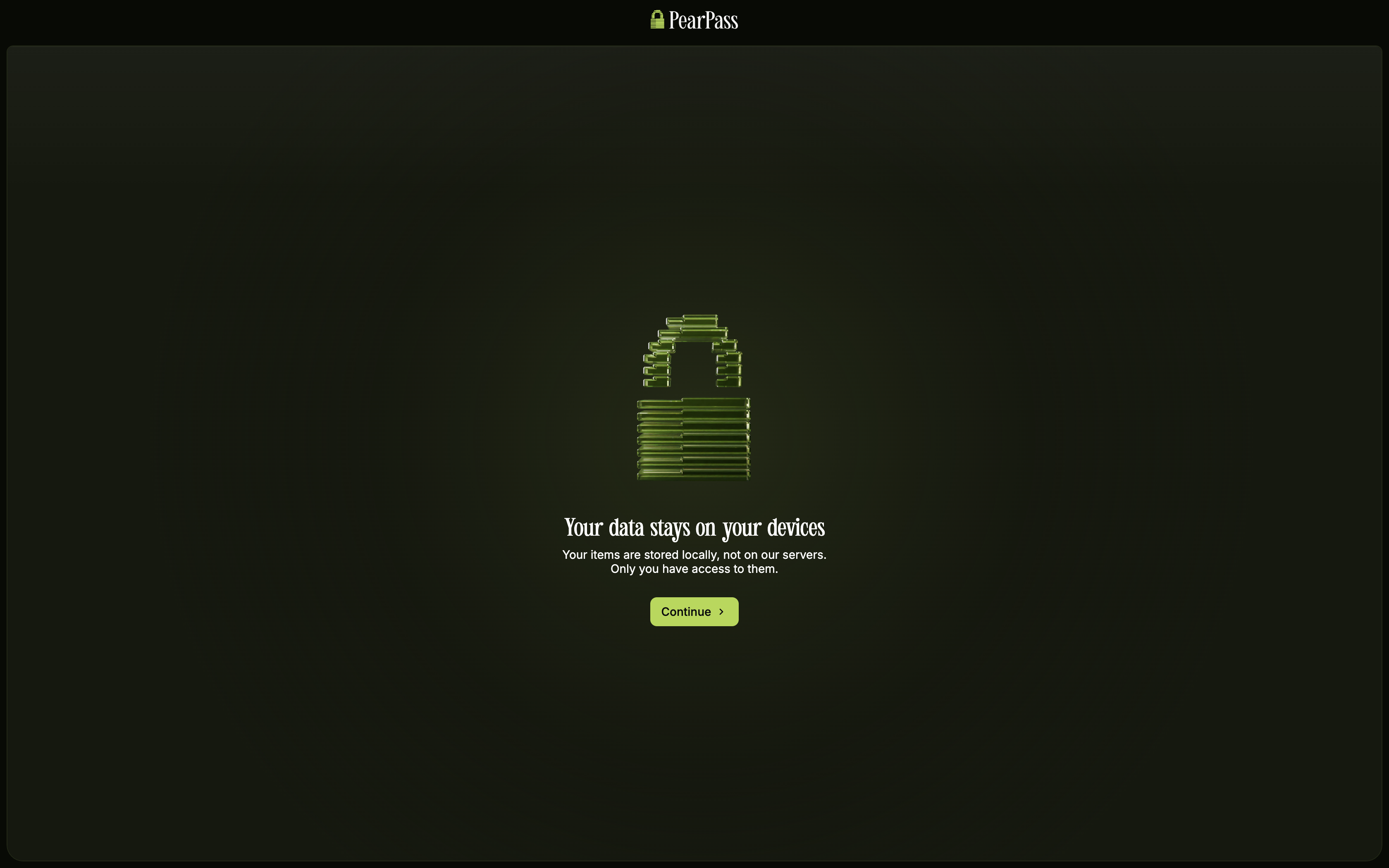
Click Continue on each onboarding screen until you reach the master password setup screen.
Type your master password
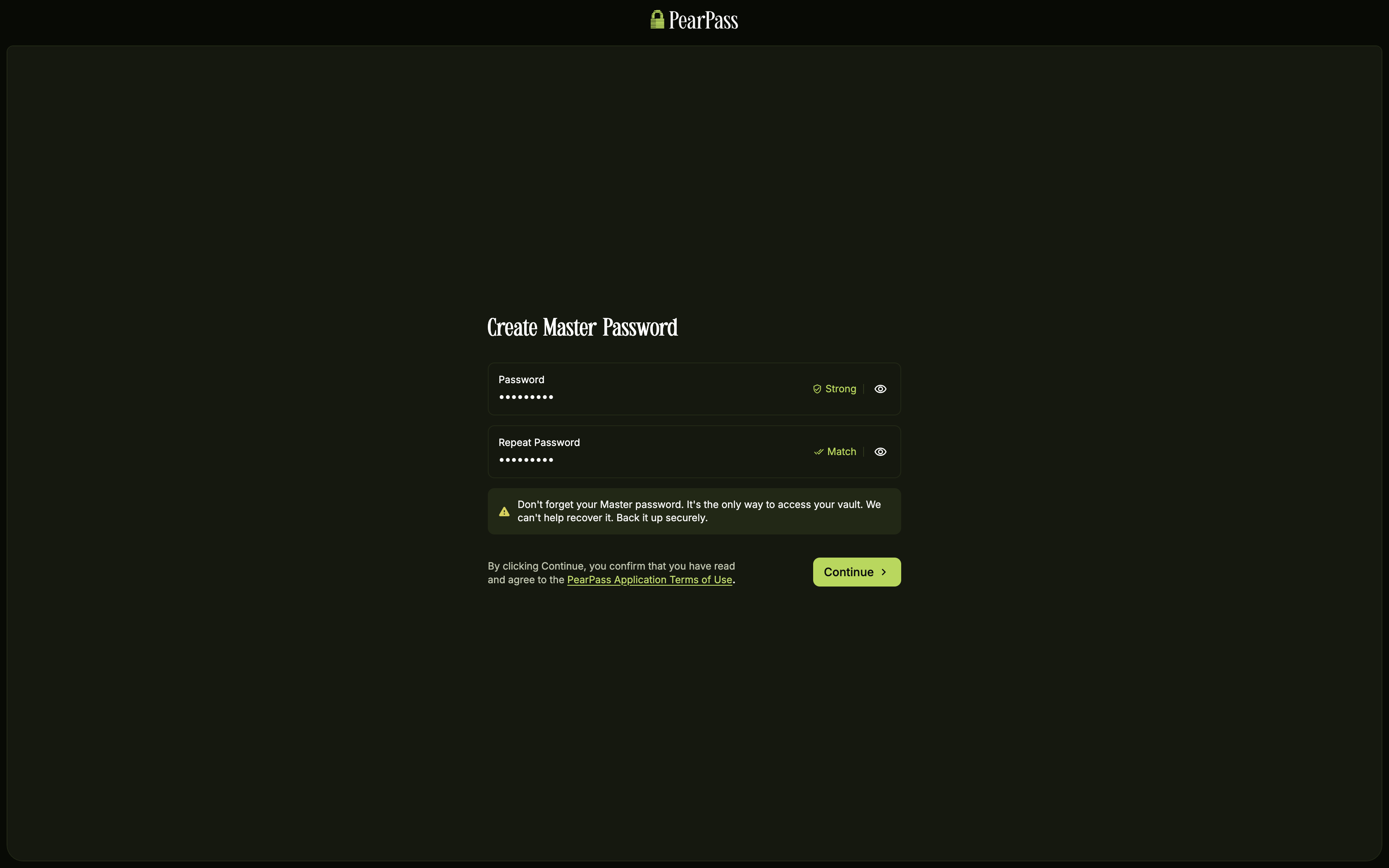
Type your master password in the Password field, then retype it in the Repeat Password field. Your master password must meet the following requirements:
- At least 8 characters
- At least one uppercase letter
- At least one lowercase letter
- At least one number
- At least one special character
Click Continue to agree to the PearPass terms of use and complete your master password setup.
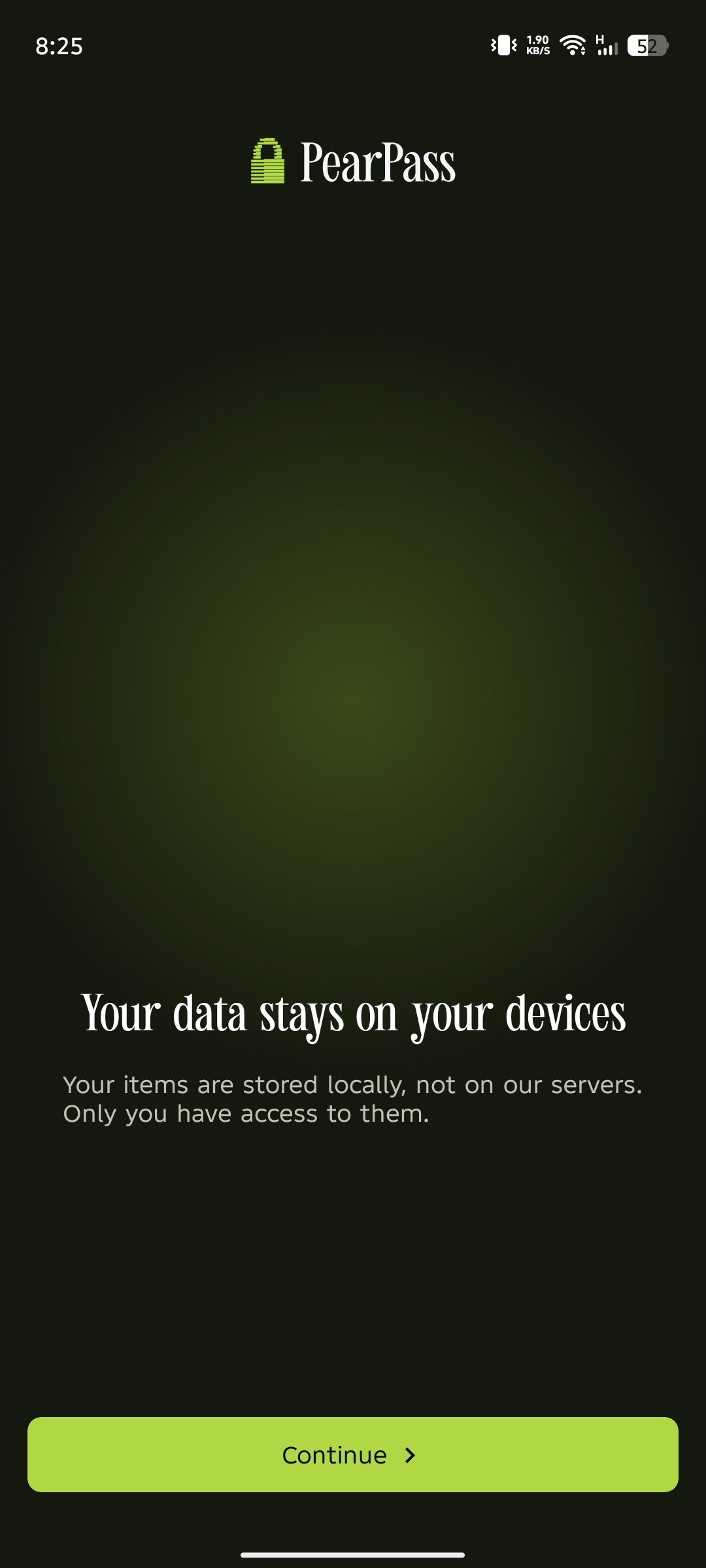
After installing PearPass, open the application on your mobile device. If you haven't installed it yet, see Mobile Installation.
Start onboarding
Tap Continue on each onboarding screen until you reach the master password setup screen.
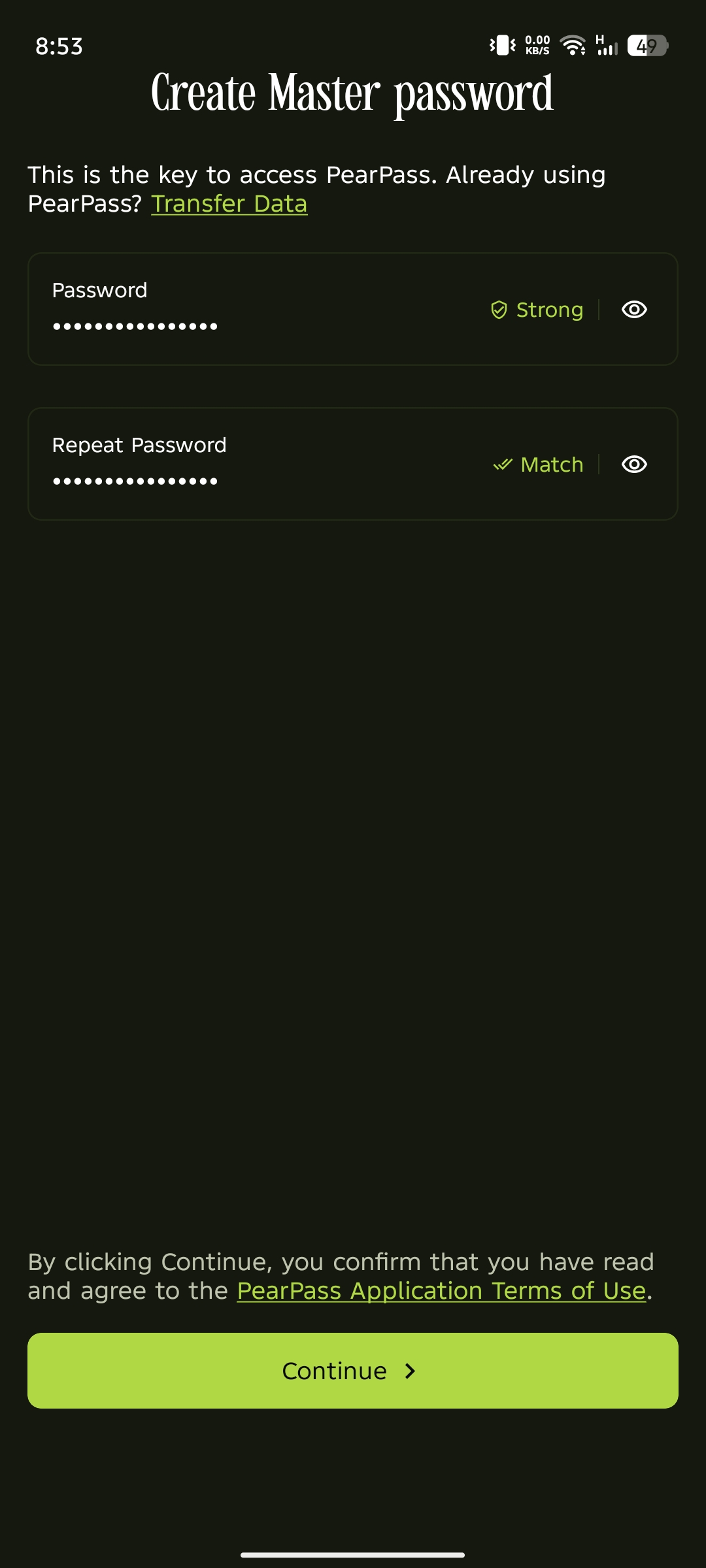
Type your master password
Type your master password in the Password field, then retype it in the Repeat Password field. Your master password must meet the following requirements:
- At least 8 characters
- At least one uppercase letter
- At least one lowercase letter
- At least one number
- At least one special character
Tap Continue to agree to the PearPass terms of use.
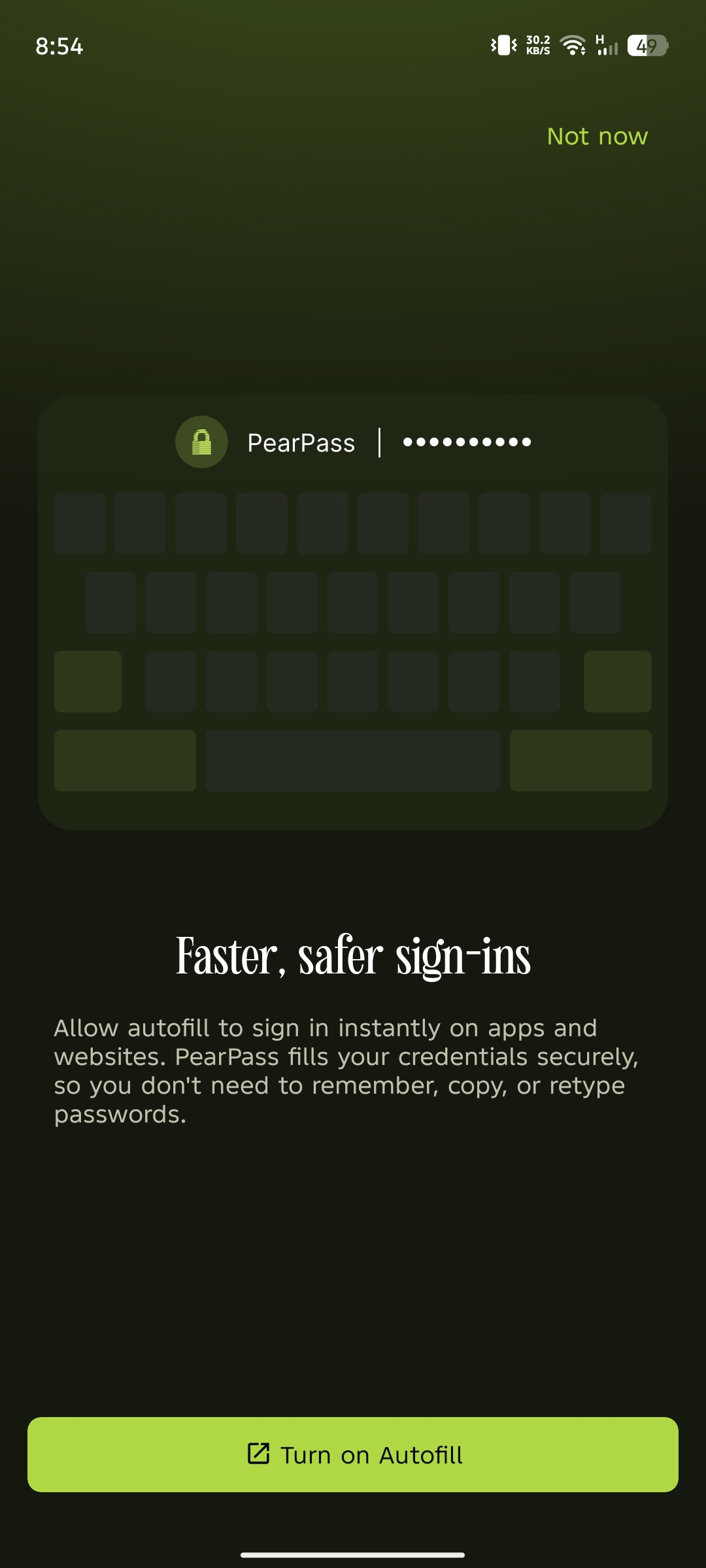
Turn on Autofill
Tap Turn on Autofill, follow the on-screen instructions, then select PearPass.
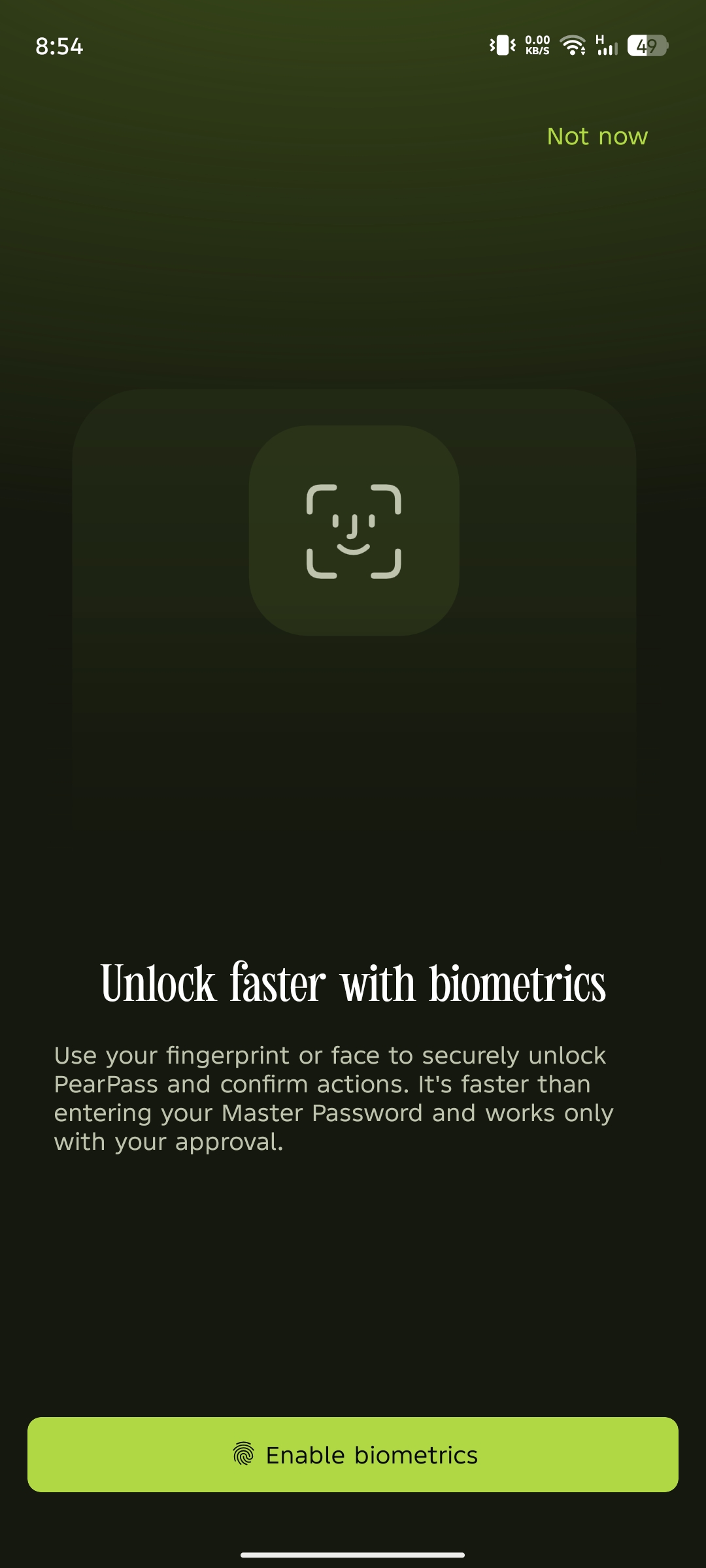
Enable Biometrics
Tap Enable Biometrics, then follow the prompts to grant permission. You have completed your master password setup.