 PearPass
Adding Your First Item
In this tutorial, we'll add a Login item to your PearPass vault. By the end, you'll have your first item saved and ready to use.
Sign in
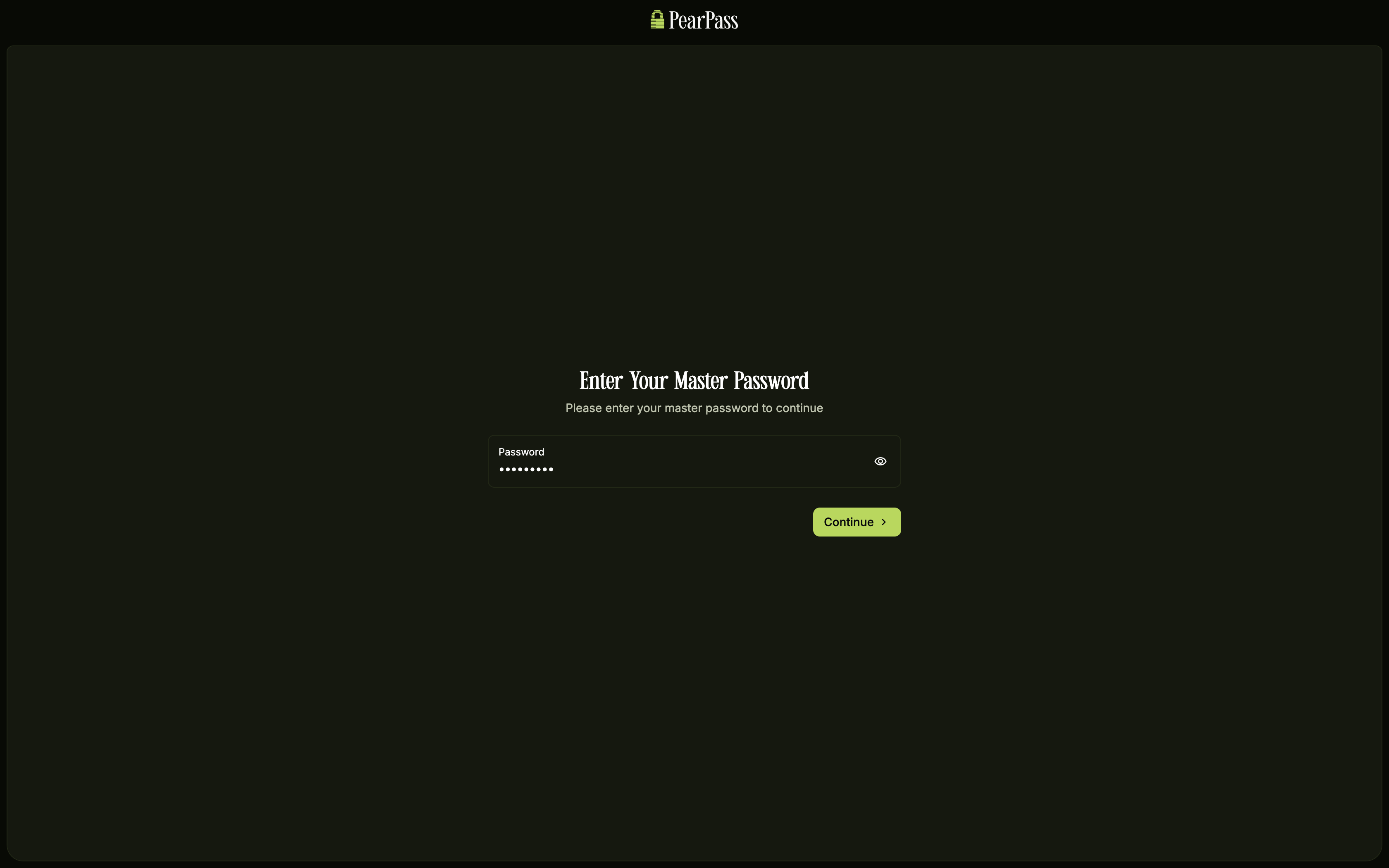
Open PearPass on your computer and sign in with your master password. You should see your vault screen.
Add a new item
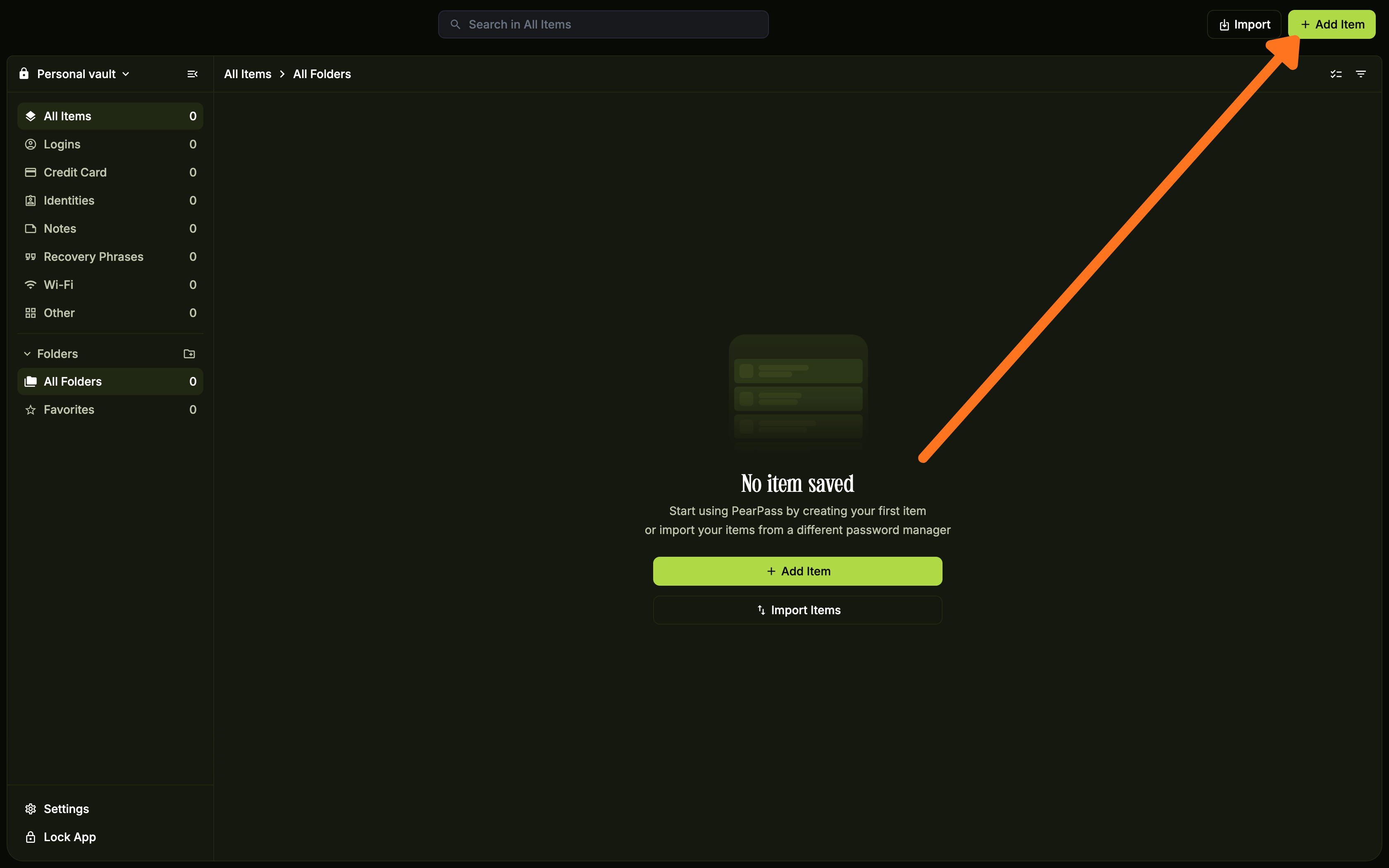
Click + Add Item in the top right corner. If your vault is empty, click + Add Item in the item list area instead. Notice that a dialog appears listing all item types.
Select the item type
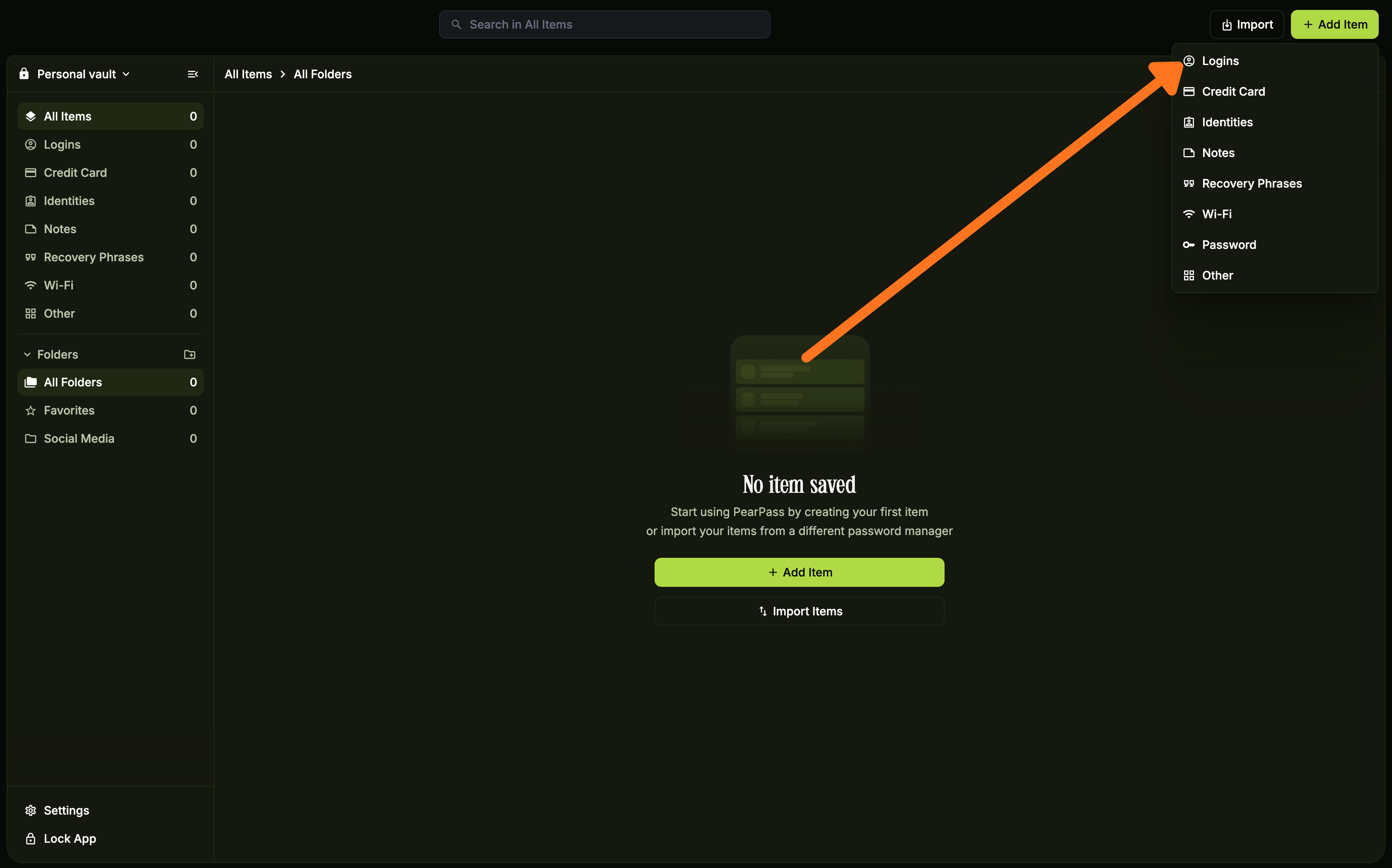
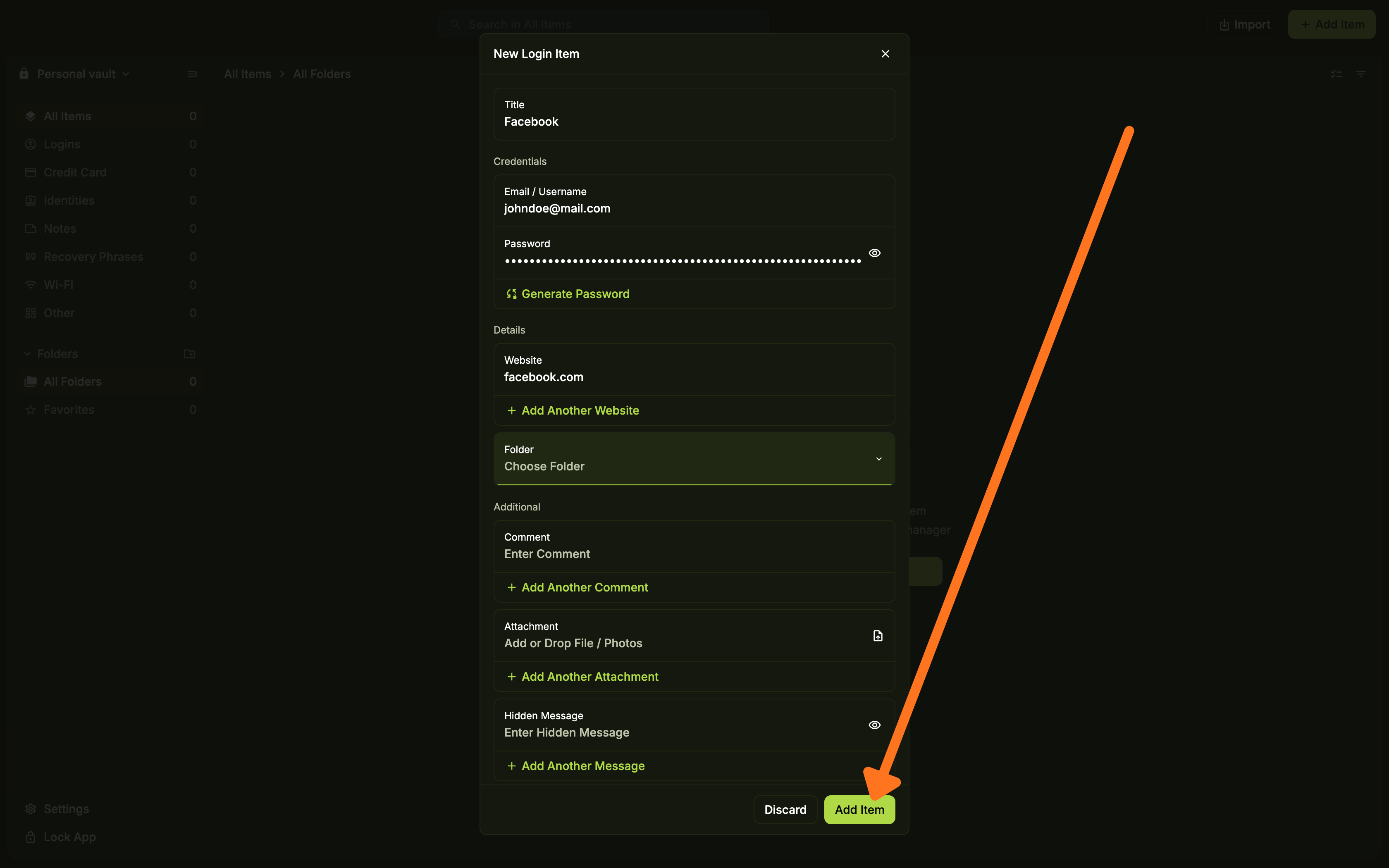
Select the item type you want to add. For this tutorial, we'll select Login. Notice the form appears with fields specific to the item type you selected.
Enter the item details and add
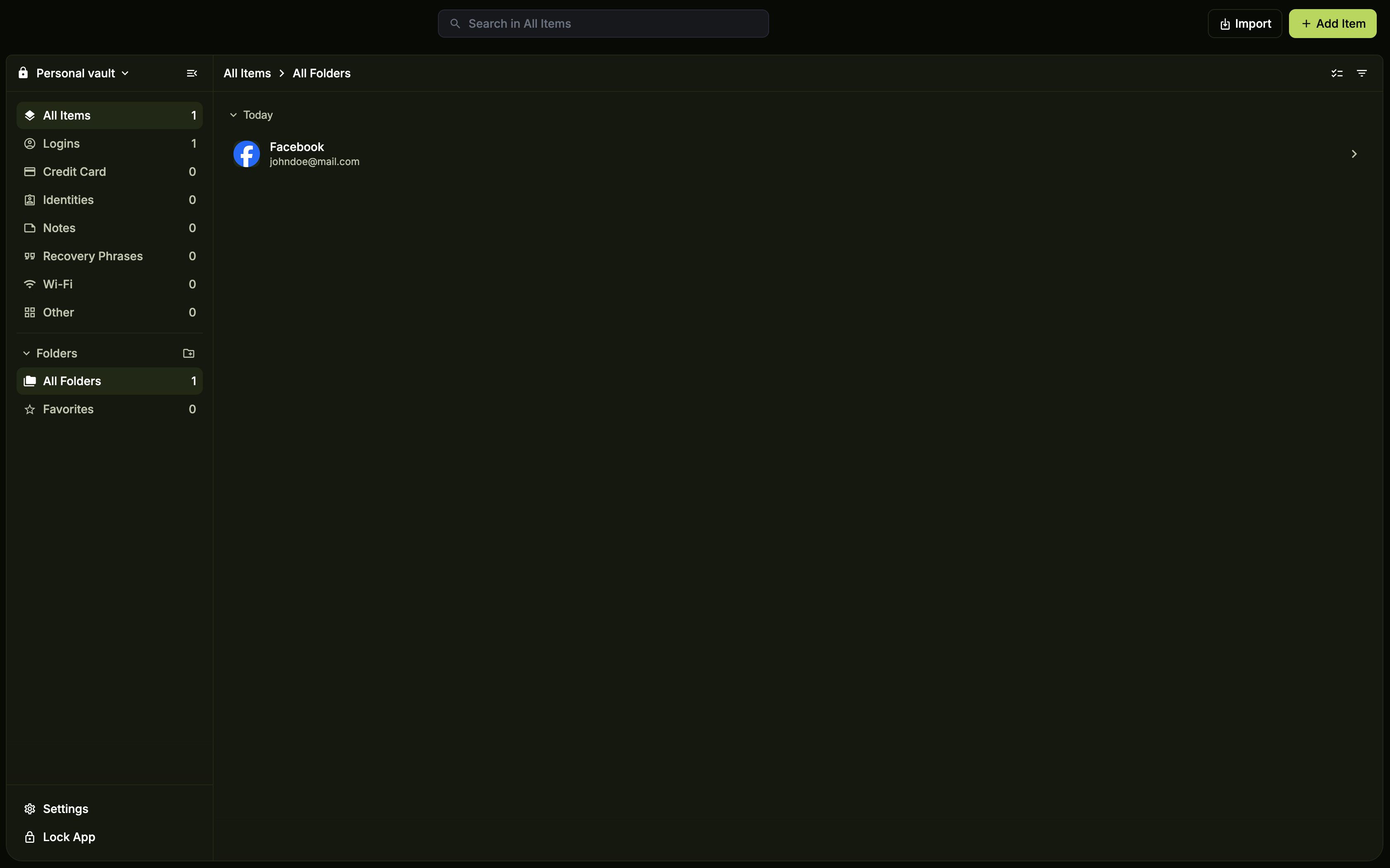
Fill in the required details for the item type you selected, then click Add Item. Notice that your new Login item now appears in your vault.
View your saved item
Click the item in your vault to view and manage it.
Sign in
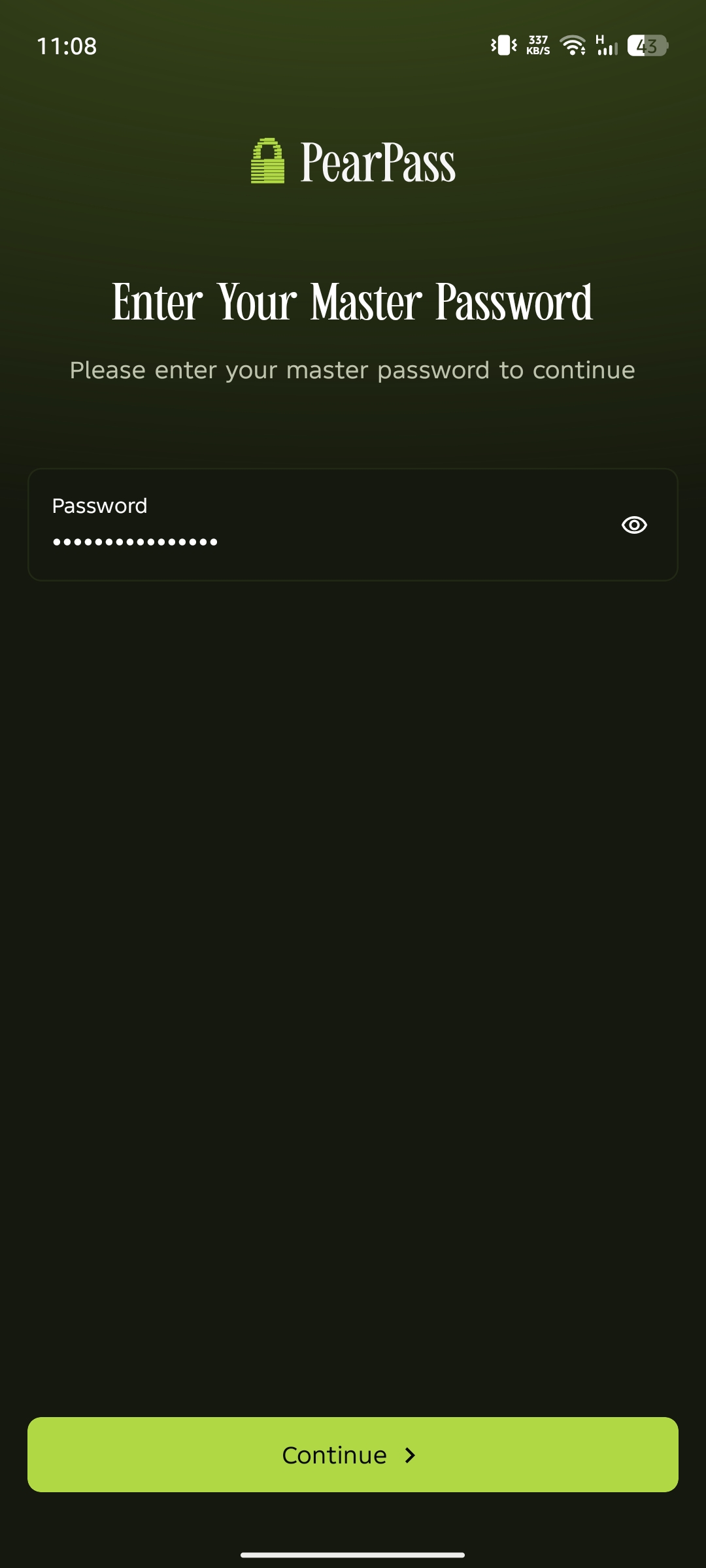
Open PearPass on your mobile device and sign in with your master password. You should see your vault screen.
Add a new item
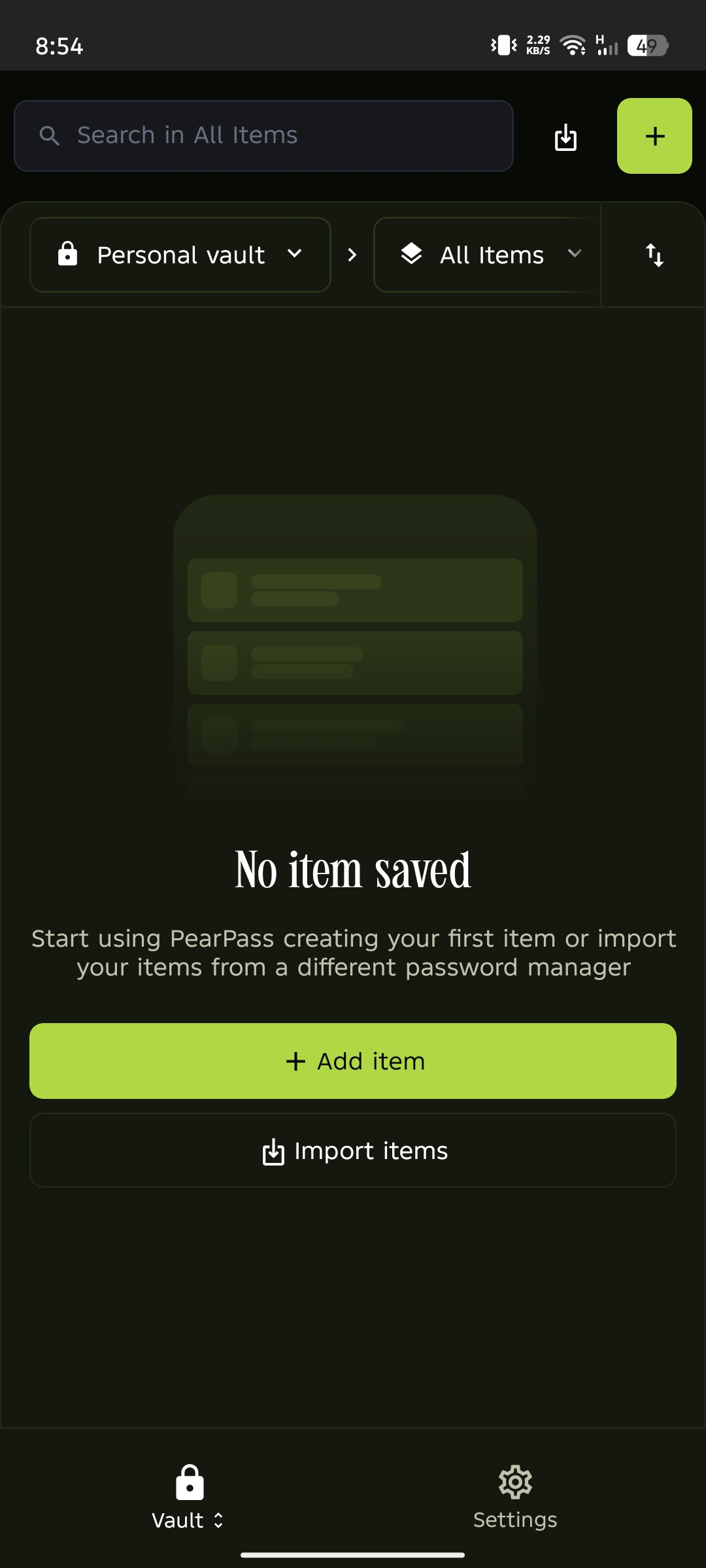
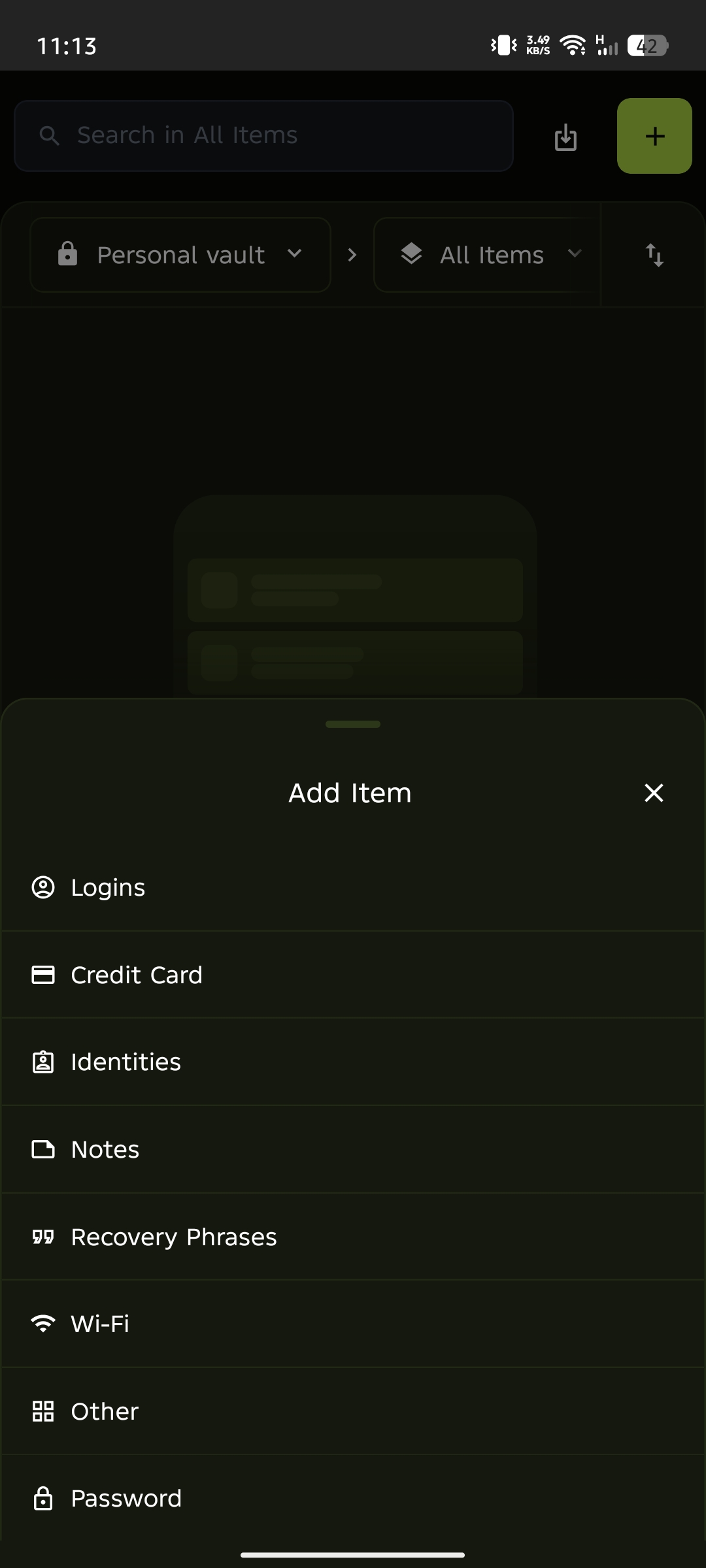
Tap the + icon in the top right corner. If your vault is empty, tap + Add Item in the item list area instead. Notice that a dialog appears listing all item types.
Select the item type
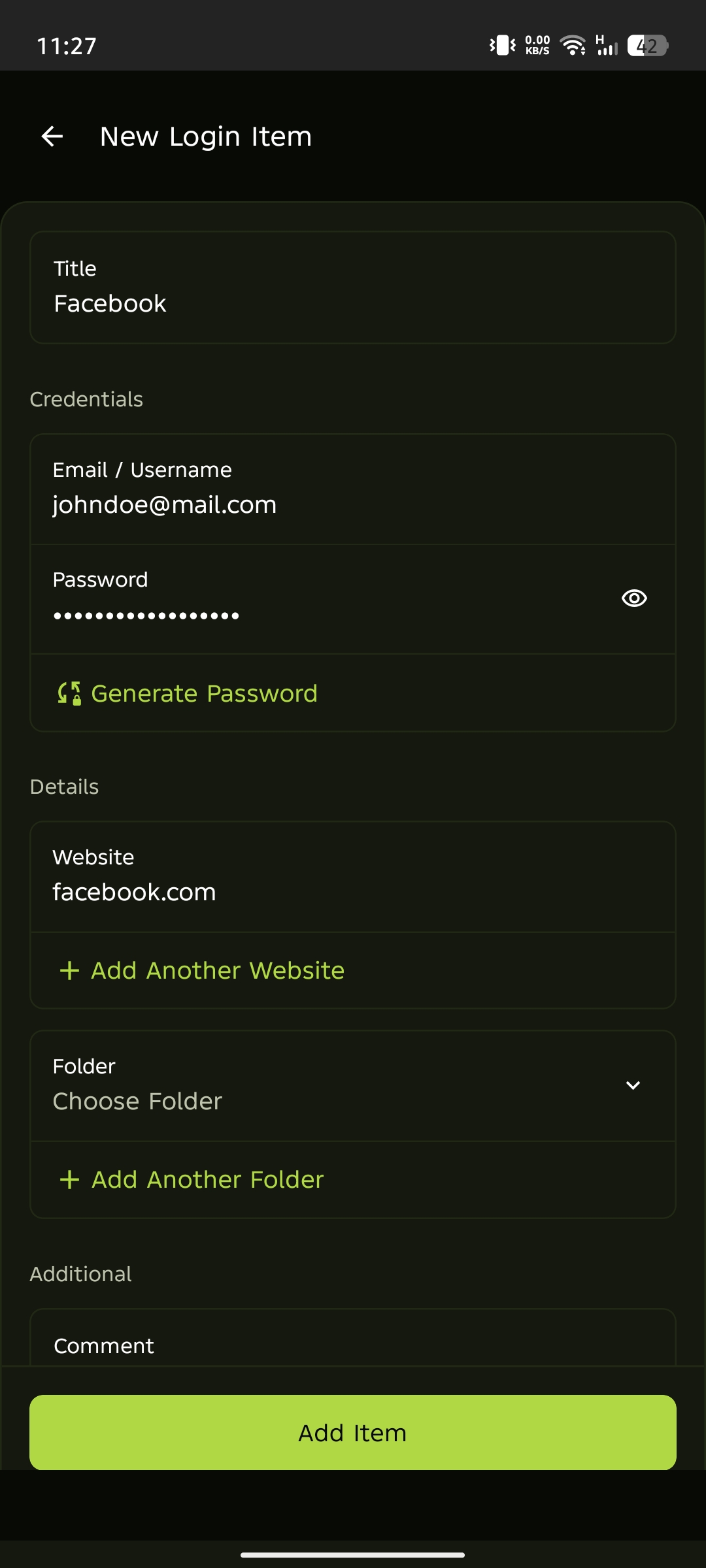
Select the item type you want to add. For this tutorial, we'll select Login. Notice the form appears with fields specific to the item type you selected.
Enter the item details and add
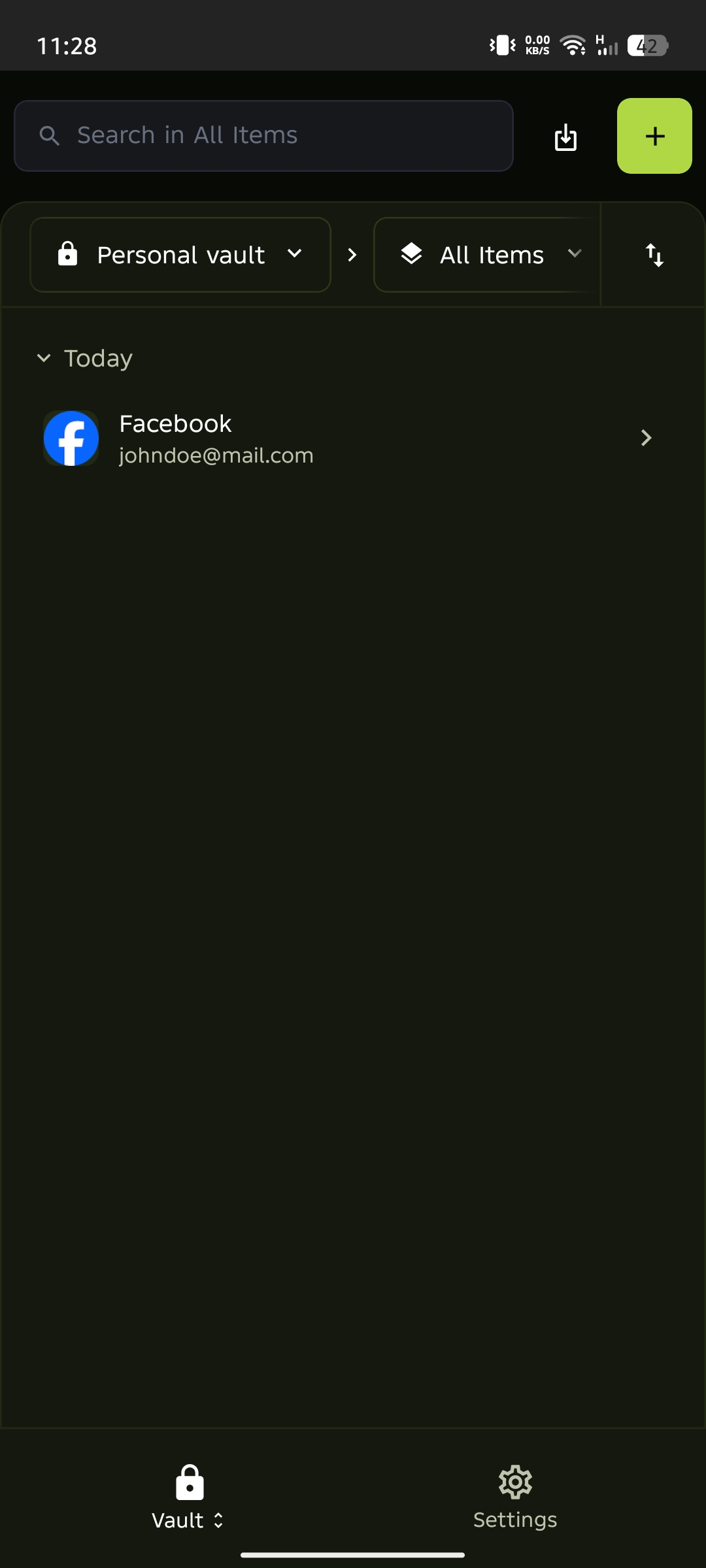
Fill in the required details for the item type you selected, then tap Add Item. Notice that your new Login item now appears in your vault.
View your saved item
Tap the item in your vault to view and manage it.
Open the extension
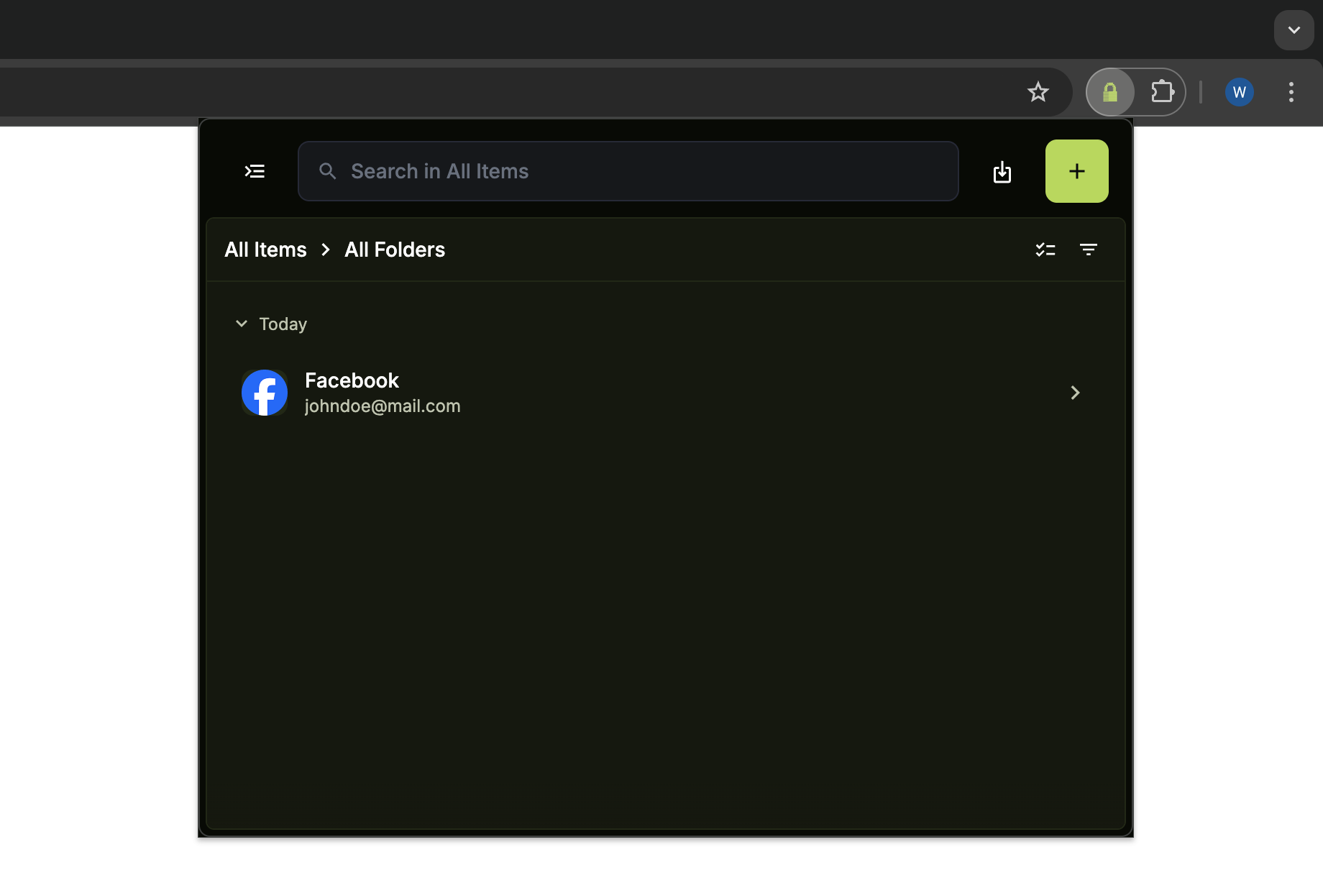
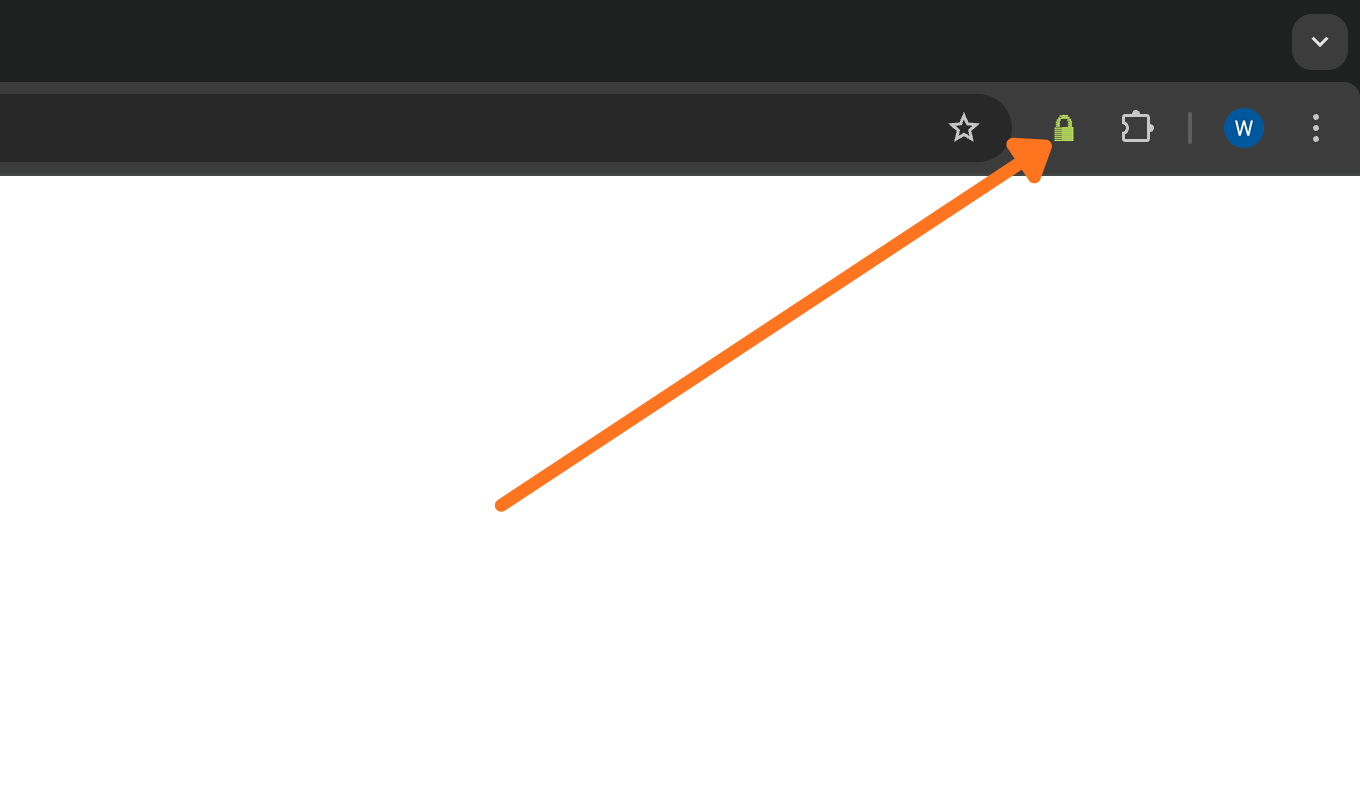
In your browser toolbar, click the PearPass icon.
Sign in
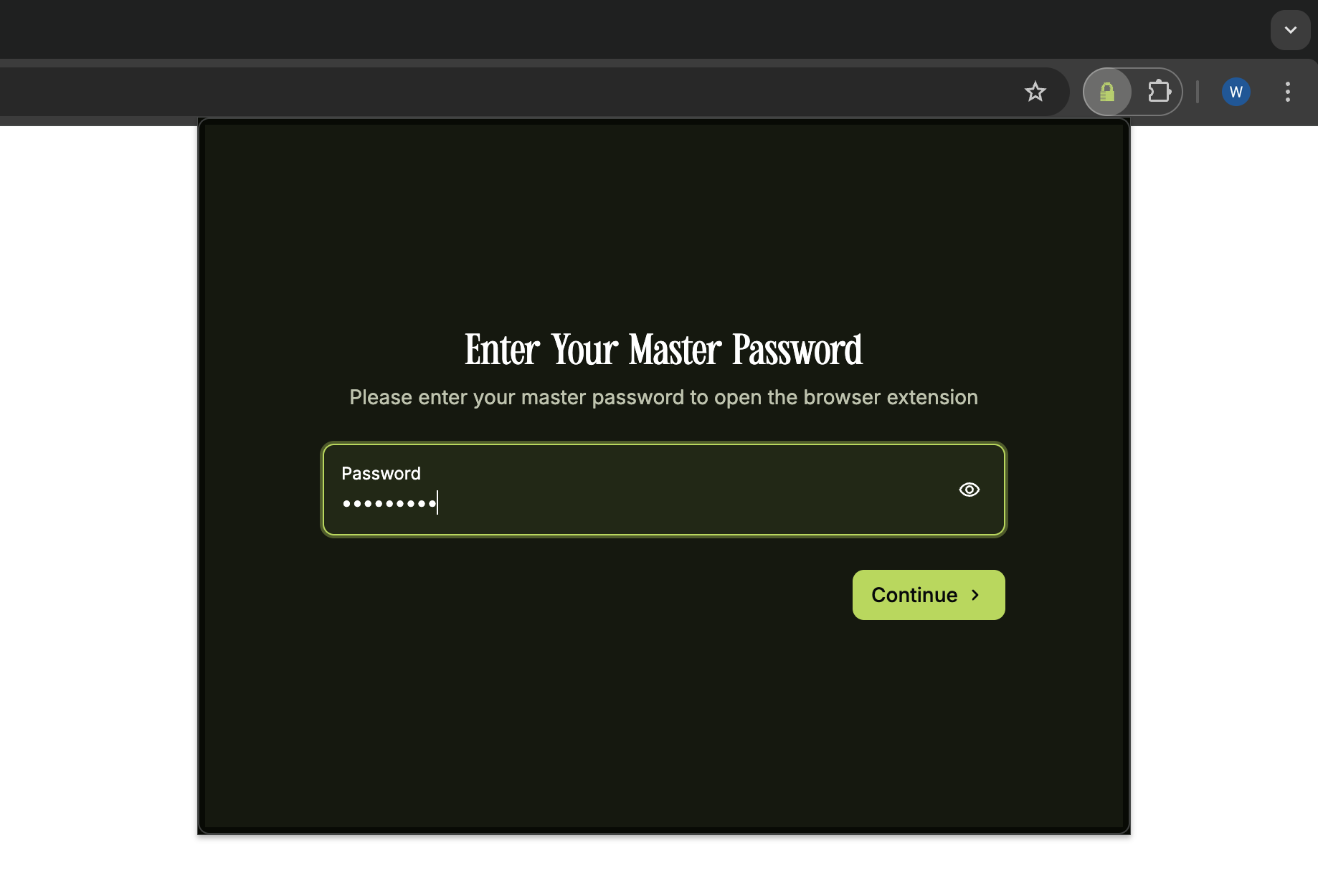
Sign in with your master password, then click Continue. You should see your vault screen.
Add a new item
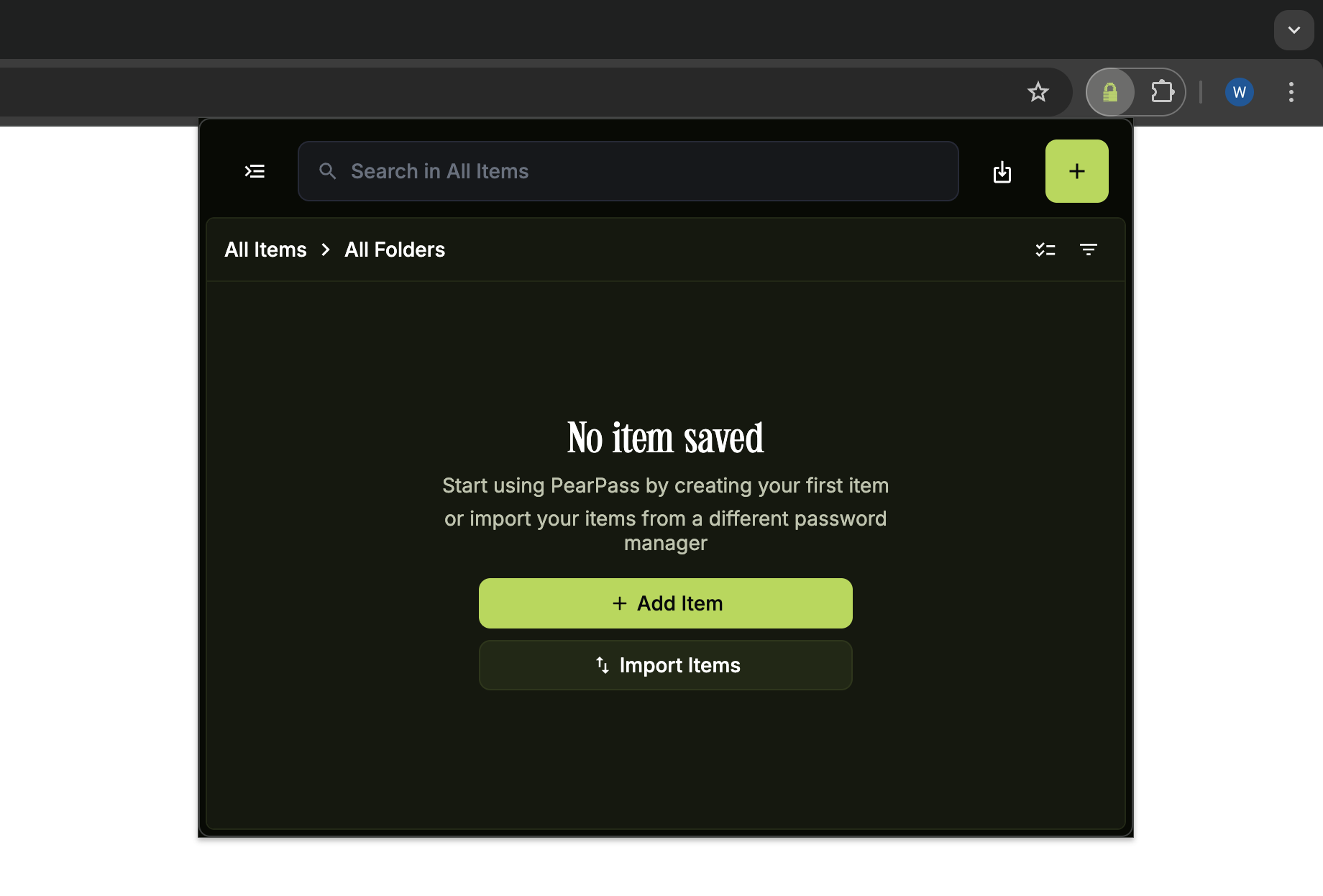
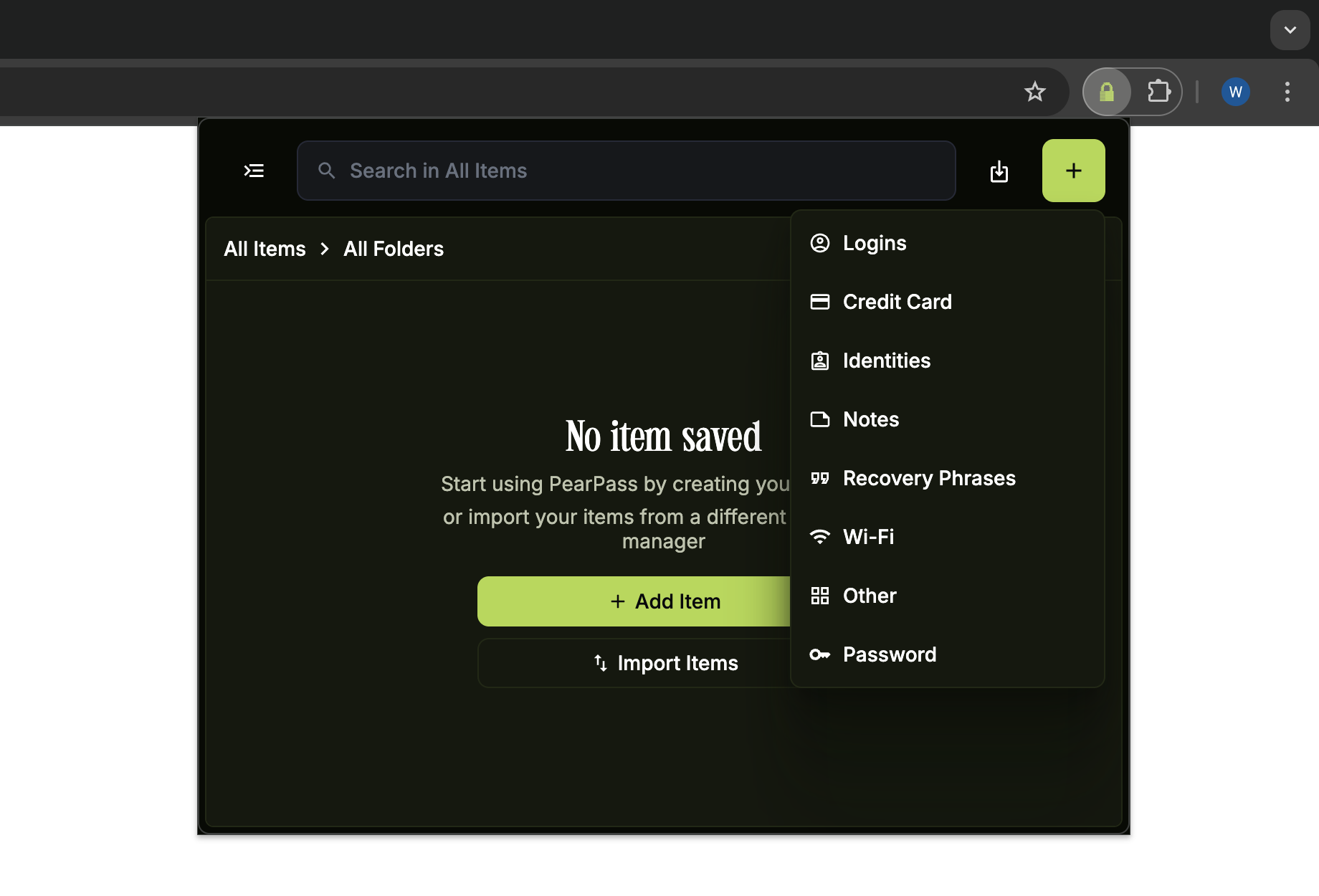
Click the + icon in the top right corner. If your vault is empty, click + Add Item in the item list area instead. Notice that a dialog appears listing all item types.
Select the item type
Select the item type you want to add. For this tutorial, we'll select Login. Notice the form appears with fields specific to the item type you selected.
Enter the item details and add
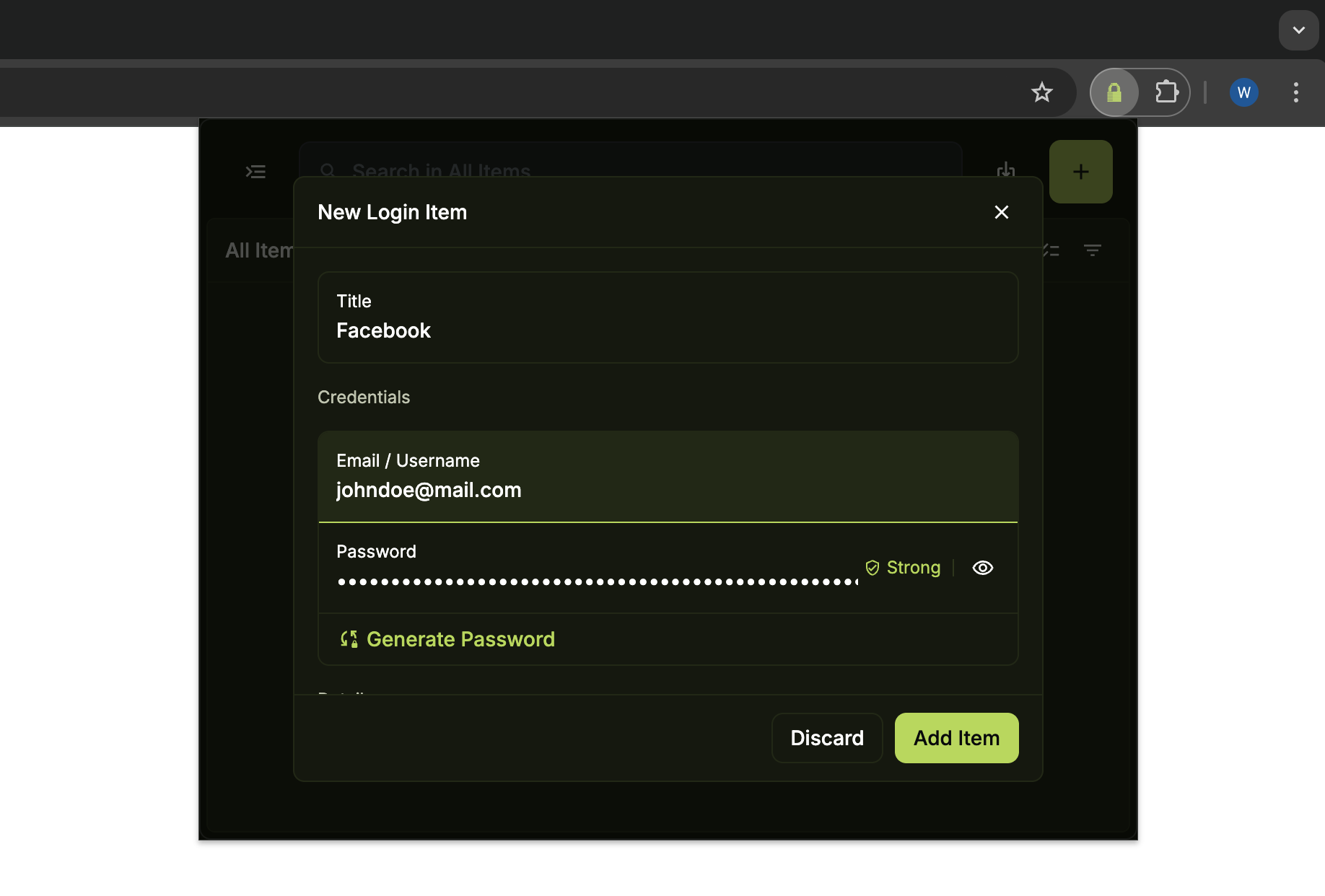
Fill in the required details for the item type you selected, then click Add Item. Notice that your new Login item now appears in your vault.
View your saved item
Click the item in your vault to view and manage it.